

Club Rankings — App Store: https://apps.apple.com/us/app/club-rankings/id6816728971 · Google Play: https://play.google.com/store/apps/details?id=com.stoufferai.clubrankings
Download PDF · Calculations reference · Seasonal Standings playbook · Seasonal Standings captain manual · Court Manager manual · Marketing site

Complete user manual — leaderboards, confirmations, and admin tools
Club Rankings — App Store: https://apps.apple.com/us/app/club-rankings/id6816728971 · Google Play: https://play.google.com/store/apps/details?id=com.stoufferai.clubrankings
Club Rankings is a club-scoped engagement and seeding system. Standings are valid only inside your club, per sport — not a global rating like DUPR or UTR.
Have a question? Get a fast, accurate response. Use Ask in the header on your Club Court Manager or Club Rankings site. Answers come from these product manuals — not your club’s local rules. When a section has a screenshot, Ask links to that picture. Under the answer, Open Instruction Manual opens these steps. For hours, fees, or guest policy, ask a club administrator.
| Type | How Club Play matches players | Typical use |
|---|---|---|
| Round robin | Full circle at Start live. Each pair at most once. Sit-outs rotate. | Even games, and a schedule everyone can see up front |
| King of the court | Winners stay. Losers go to the back of the bench. Random mix splits the winners onto new partners. | Open play. Winners play every round. Everyone else rotates on. |
| Ladder | Top ranks play. Upsets swap places. A loss on the lowest court brings the next waiting team on. | Season-rank nights. Higher ranks play more. |
| Swiss | Bye goes to whoever has played more, then pair by tonight's record. Mixed random mix stays man + woman. | Competitive courts, with everyone within one game |
What each option is, how finish order is decided, and how to set it up → Ranking options. Pairing detail → Seasonal Standings Playbook §4.4.
Sport-specific presets apply when rankings are first enabled for a section (e.g. Pickleball vs Tennis weights).
Members use standings in two places:
New communities start on the web at clubcourtmanager.com/start. After the community exists, members install the app.
iPhone: https://apps.apple.com/us/app/club-rankings/id6816728971
Android: https://play.google.com/store/apps/details?id=com.stoufferai.clubrankings
Reviewers and members sign in with Password after searching for the community (for example VeronaWalk). Email link and text code also work when the club has them enabled.
These are the four session formats. Performance weights stay on unless a captain or admin removes them.
Completing the session turns that finish order into performance points on the seasonal standings leaderboard. The six performance weights stay on unless a captain or admin checks Remove all performance weights and confirms. Champion bonus, participation bonus, and volunteer points are separate and stay as set. Setup detail: Captain manual §4.5.1 and Playbook §4.4.
Related pieces inside Club Rankings (see also who does what):
/club-play and one dated night: the participant list, optional scores, and email.Handoff: Admin adds the Group on Court Groups — a new name, or start from a saved group so its captains copy over. The saved schedule stays, its courts stay on that group, and Save shows Save confirmed → Club Play opens with that group already selected → the captain adds members → scored nights update that Group and the club Leaderboard.
Each Group is one crew inside one sport. Tournaments stay on Admin → Events. A Court Group without a play schedule is only a skill court list.
Archived seasonal standings stay in history but disappear from public pick lists. For the full signup → scores → results workflow, see the Seasonal Standings Playbook (PDF).
Each ranked player receives a personal rankings wallet when they join a sport roster or register for a linked event:
/rankings-wallet to confirm session scores (scan at courtside).View your QR and re-print from My ranking. Admins can Regenerate wallet QR + 4-digit code on the member profile if a card is lost.

/rankings-wallet) — courtside confirm with sport + 4-digit code; no full sign-in required on a shared tablet.When a member submits session results, every participant must confirm (or dispute) before standings update — unless your admin sets majority rule. Admins can also enter results directly (no confirmation needed).
/rankings-wallet or Confirm tab), personal link (email), or the signed-in Confirm tab.On your community site: /rankings. If your admin set visibility to Public, anyone can view the Leaderboard tab without signing in. All other tabs — Sessions, Seasonal Standings, club stats, My ranking, submit, and confirm — require sign-in. Tenant admins see Admin and Captain tabs, plus site nav Club Play and an Admin-page Club Play link next to Club Rankings.
Anyone interested in Club Rankings can open shared Training (fictional players only) from clubcourtmanager.com/platform/rankings or https://your-sports-club.clubcourtmanager.com/rankings-scenario. Choose Member, Captain, or Administrator on the welcome screen — see Part 8.
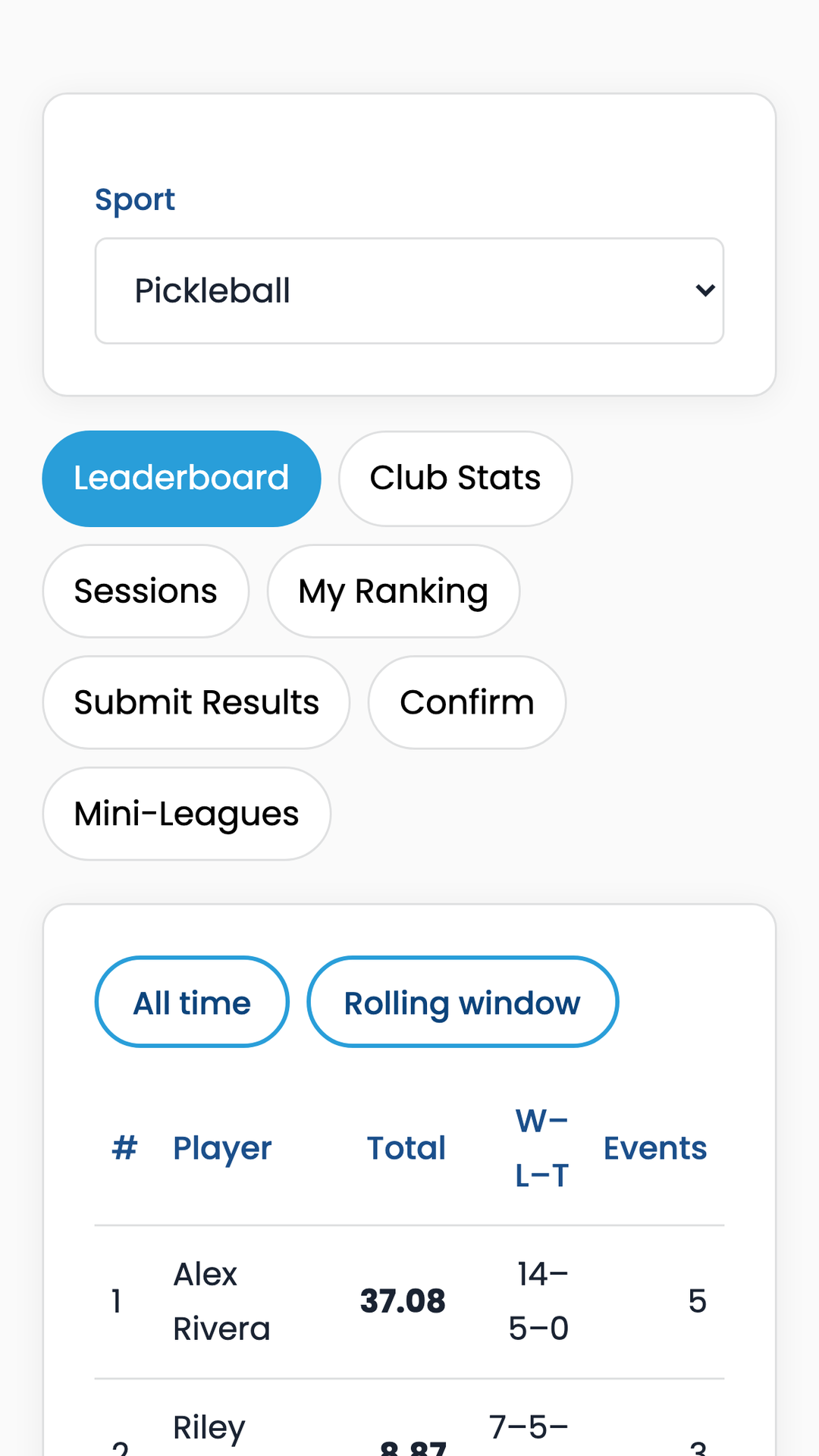
Screenshots below were captured from the shared demo sandbox (sample data; resets hourly). Your community's branding and standings will differ.

Browse completed club sessions for the selected sport (including Club Play nights). Click a row to see per-player scores for that session.

View standings for an active seasonal standings — choose your sport, open the Seasonal Standings tab, and pick a league from the dropdown. If none is listed, your admin has not created one yet. See the playbook View results section for a full walkthrough.

Community-wide stats: active players, sessions played, top performers, recent activity — useful for board reports.

When your admin enables club rating for this sport, you may see two numbers on the same 1.0–5.5 scale:
Recent sessions may show a club rating change (e.g. +0.04) alongside performance point changes.
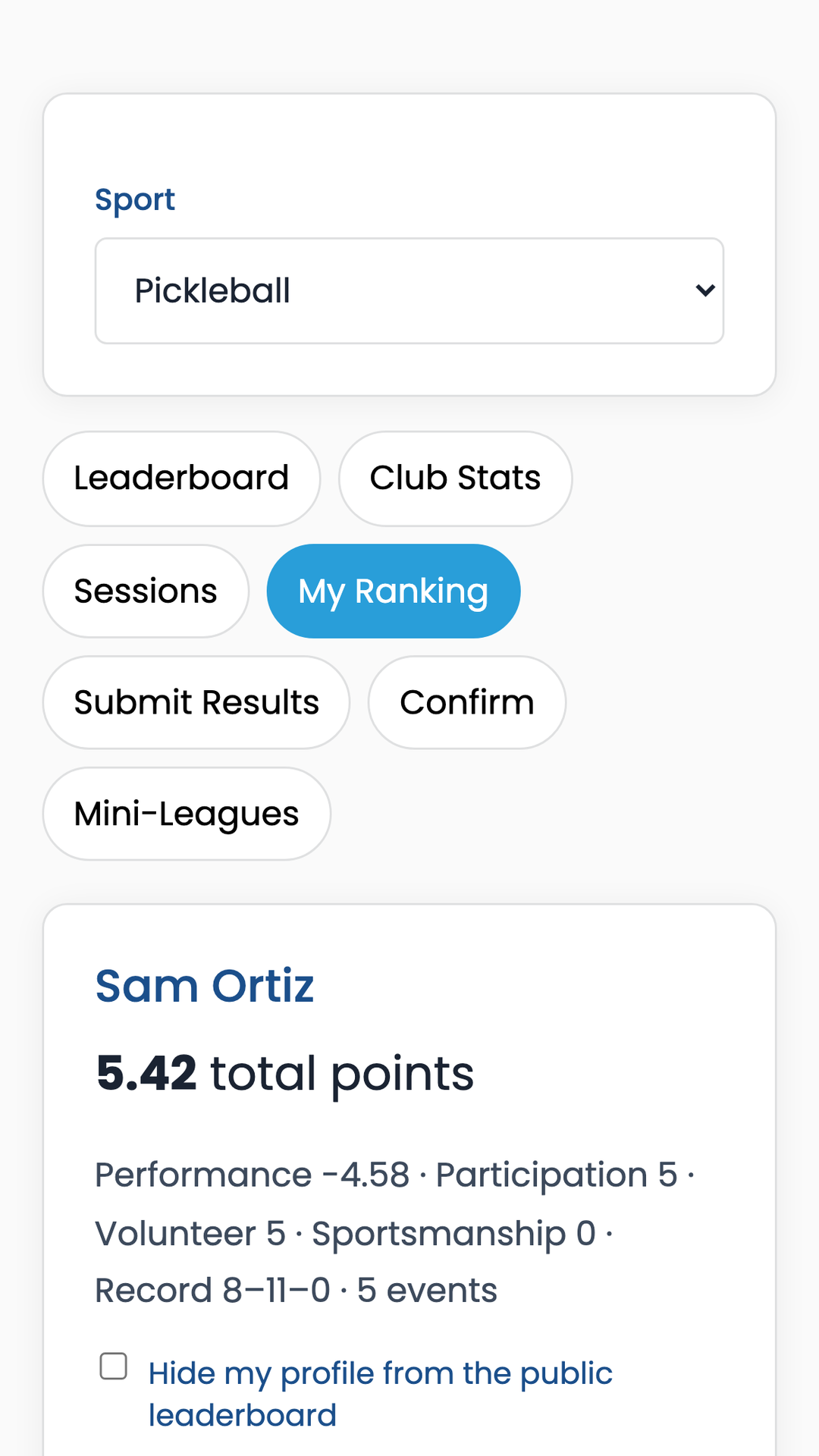
Your personal summary: total points with a full category breakdown (performance, participation, volunteer, sportsmanship), wins/losses, streaks, achievements earned, and your last 20 completed sessions (click any session for per-player scores). Also shows your rankings wallet QR and reminds you to keep your 4-digit confirm code (shown once when issued). You can opt to hide your profile from the leaderboard with the privacy checkbox.

/club-play; members watch only — peer confirm does not apply. See Playbook §4 — When to use which.
Sessions waiting for your confirmation appear here when signed in. You can also:
/rankings-wallet on a courtside tablet — choose sport, enter code, confirm without full sign-in.For each session you can:
A badge on the Confirm tab shows how many items need your attention.

Admins set leaderboard visibility per sport under Admin → Settings:
Individual members can also check Hide my profile from the public leaderboard on the My ranking tab — others won't see you on the board (you still see yourself).
Open Club Rankings and select the Admin tab (visible only to tenant admins).
Direct entry — no member confirmation required. Use for league nights when the chair enters official results.

Bring history on day one without manual entry.
Download templates from the Import tab:
/templates/rankings-roster-import-template.csv/templates/rankings-results-import-template.csvPreview before import; fix errors shown in the preview panel.

Pending member submissions and disputes. Admins can approve, edit, or reject. Approved sessions recalculate rankings.

Per sport — tune how points are calculated (see Part 3). Changes apply on next recalculation. Before changing live weights, use Training as Administrator (Part 8) to preview effects with fictional players.

Admin → Seasonal Standings panel — create and manage season-style leagues.

Rankings-only tenants see court booking hidden; roster and import still available. Full CCM tenants also book courts, run event registration (Part 5), and may log ranking sessions from the admin schedule — when a schedule block has an event registration page, its Log rankings button opens the Events participants flow so results are scored in one place.
| Setting | Purpose |
|---|---|
| Remove all performance weights | Unchecked by default, so the six weights stay as saved. Checking it asks for confirmation, then sets win %, placement, point differential, opponent strength, partner strength, and age handicap to 0 for this sport. Finish order does not change. Unchecking restores 40 / 20 / 15 / 15 / 10 / 10. Champion bonus, participation bonus, and volunteer points stay as set. Captains have the same checkbox for one seasonal standings. |
| Win % weight | How much win rate affects performance score |
| Placement weight | Finish position in round robin / KOTC / Swiss / ladder |
| Point diff weight | Points scored vs allowed |
| Opponent / partner strength | Reward beating stronger opponents |
| Age handicap weight | Boost for older players from date of birth (default 10; set to 0 to disable) |
| Age baseline / spread | When age handicap is on: age that scores neutral (default 50) and years to reach 0 or 100 (default 25) |
| Participation bonus | Flat points per event played |
| Max weekly gain / loss | Cap how much the hidden skill index moves per week |
| Min events for leaderboard | Players need N completed events to appear (default 3) |
| Champion bonus | Extra points for 1st place |
| Rolling window (months) | Leaderboard "rolling" view length |
| Visibility | Members only (sign-in required) vs public (read-only leaderboard at /rankings without sign-in) |
| Confirmation rule | All players vs majority must confirm |
| Fast-confirm bonus / window | Reward quick confirmations |
| Volunteer bonus | Points per volunteer session |
| Inactivity decay | Optional gradual point reduction after idle period |
| Club rating (master) | Opt-in play-adjusted 1.0–5.5 skill rating; off by default |
| Club rating display | Independent checkboxes: Profile, My ranking, Leaderboard column |
| Min events for club rating | Show — until member completes N ranked sessions (default 1) |
| Rankings wallet | Auto-issued QR + 4-digit confirm code per member (confirm scores only) |
Full CCM admins can also import members via Admin → Members (CourtReserve-style CSV) — that populates sign-in accounts; use Rankings Import for historical scores.
Full CCM communities (and rankings-only tenants with events enabled) can run public registration pages from Admin → Events.
/event?code=…) or QR code.Members sign in, open the event link, and click Register. If they do not meet seasonal standings eligibility, the page explains why registration is blocked. The event page shows the linked seasonal standings name and rules when applicable.
After the event, open the event in Admin → Events → Enter rankings from roster. Players who registered are pre-filled; enter wins, losses, points, and placement, then save. Standings update for the linked seasonal standings and the club-wide board.
Seasonal Standings captains are members assigned to enter official results for one or more seasonal standings — without full admin rights.

Captains can:
Captains cannot:
Distribute the dedicated Seasonal Standings Captain User Manual (PDF) to volunteers in this role.
Club Play (/club-play) is one dated play event inside seasonal standings (day or evening) — captains and tenant admins create it and enter live court scores (phone or desktop); members sign up via the shared link and watch scores (they do not enter or peer-confirm games during the night). Open it from site nav Club Play, Rankings → Captain → Run Club Play, or Admin → Club Play. At Start live, optionally set Number of rounds (blank = round-robin default length, or unlimited king of the court / ladder / Swiss until End session). If a checked-in player has to leave, click Replace, search the sport roster, and pick who takes the spot. Scored games stay with the player who left. The new member takes unscored courts for the rest of the night, including later rounds. Someone already in the session cannot take the spot. Ending the session records both. After completion, game-by-game scores appear on the Sessions tab. For casual play without Club Play, members use Submit results (§1.6) with peer confirm instead. Roles: who does what. Detail: Seasonal Standings Playbook §4; Captain manual.
Live pairings (who plays whom) are driven by format, court count, signup order, partner mode, game scores, and (for ladder and Swiss round 1) Seasonal Standings seed — not by weight sliders, age handicap, or skill rating. Scoring weights apply when a session is completed: each player gets a weighted performance score that feeds seasonal standings and club-wide standings. Session placement for king of the court, round robin, and Swiss uses wins, then point differential, then a weighted tiebreaker (same weights as your club, excluding placement). Ladder sessions use final ladder order for placement. How each format matches players: Playbook §4.4. Placement detail: Playbook §4.5.

/club-play) — the captain's group is already selected. They add members, email the list, and open the leaderboard when scores should count.
Standalone Club Rankings does not include an in-app upgrade wizard. To add court booking later, contact support@stoufferai.com — your tenant, members, and ranking history can be moved to full Club Court Manager without starting over.
$19/month includes 150 active members. 14-day free trial at clubcourtmanager.com/start?product=rankings. Manage subscription in Admin → Billing. Full CCM uses the court-based plan ($40 up to 6 courts, +$5 each additional, unlimited members).
Training is a shared practice environment for Club Rankings on the demo host. It uses fictional players and sessions only — nothing is saved to your club and your real roster is never touched. No sign-in is required. Training does not include court booking; the full CCM demo (courts + rooms) is a separate entry at /login.
Training runs at one shared URL (not on each community's own domain):
https://your-sports-club.clubcourtmanager.com/rankings-scenarioclubcourtmanager.com/platform/rankings → Try Traininghttps://your-sports-club.clubcourtmanager.com/rankings-scenarioIf you bookmarked /rankings-scenario on your own club site, you are redirected to the shared Training URL automatically. CCM's full court-booking demo remains at …/login?fresh=1.
The welcome screen asks you to pick one perspective. You can switch roles anytime from the banner at the top (Training as Member / Captain / Administrator). Each role shows only what that role can do on a real club.
| Role | What you practice |
|---|---|
| Member | Browse fictional leaderboards and sessions; preview email/text notifications; sign up and practice entering scores on a live Club Play court (Training only — on a real club, members watch; captains enter scores) |
| Captain | Run Club Play (signup → live courts → scores); enter session results for seasonal standings — not club-wide Admin → Settings |
| Administrator | Adjust club-wide weight presets with side-by-side leaderboard compare; full Club Play host tools |
To see admin-only tools (club-wide weight sliders), exit Training and choose Administrator on the welcome screen. Captains do not get the Settings tab in Training.

Captains practice volunteer chair workflows:
Club-wide weight sliders (Admin → Settings) are not included in the Captain view. Switch to Administrator on the welcome screen to preview those.
Administrators get both Settings and Club Play practice tabs. Settings includes all club-wide weight sliders — win %, placement, point diff, opponent/partner strength, optional age handicap (weight, baseline, spread), participation bonus, weekly caps, and more. Remove all performance weights is unchecked by default. Checking it asks you to confirm, then sets those six weights to 0 in the practice lab. Nothing is saved to a club.
The Weight Lab on Settings shows component math for 8 fixed players in one fictional session (win %, placement, point diff, opponent/partner strength, age). Move the sliders and watch Score and Adj update instantly so you can see why a weight mattered. Season compare boards below the lab still show multi-session standings for the selected scenario.

Use the Scenario dropdown to load teaching presets. Each preset loads sample sessions and recommended starting weights for that format or sport:
| Preset | Best for |
|---|---|
| Mixed league (Pickleball) | Weekly club nights — alternating round robin and king of the court |
| King of the Court | Placement-heavy formats when courts rotate |
| Round robin league | Win rate and point differential emphasized |
| Ladder seasonal standings | Season-long ladder with placement-focused weights |
| Bocce placement focus | Bocce sport preset — placement dominates |
| Tennis club preset | Tennis sport weight preset |
Fictional players appear in every scenario preset for the Settings tab (four core characters). Club Play practice uses a separate pool of 24 fictional players.
Walk through a full fictional session with 24 players (alternating men and women for mixed-doubles practice). Captains and administrators run the host flow:
Members in Training can sign up and enter scores on a pre-started live round but cannot start, complete, or reset sessions. That participant score entry is for practice in the sandbox only — it does not match a real Club Play night, where only the captain or admin enters scores.
Full format guide (choice + pairing method for each option) → Seasonal Standings Playbook §4.4.
When you are satisfied with weights in Training (Administrator role):
Seasonal Standings captains who use custom seasonal standings weights should ask an admin to preview club-wide weight behavior in Training (Administrator role), then apply overrides on the Captain tab for their seasonal standings only.
The Seasonal Standings Playbook is the canonical end-to-end guide for members, captains, and admins — sign up for Club Play, post scores (live or manual), and view Seasonal Standings. Download the PDF to share at league kickoff.
Email support@stoufferai.com · Product page: clubcourtmanager.com/platform/rankings
Club Rankings™ · Document version September 14, 2026